
PrintEx Documentation
Prepare UV printer artwork by placing an imported image inside a known blank template, then exporting a correctly sized raster file at print resolution.
Quick Start
- Open PrintEx.
- Click
Import Imageor drag an image into the window. - Choose the template that matches the blank you are printing.
- Move and resize the image inside the template preview.
- Choose the output resolution.
- Enable
Registration marksif you need printer alignment marks. - Click
Export. - Drop the prepared image into eufyMake Studio.
Main Window
The toolbar contains the common workflow controls.
| Control | What it does |
|---|---|
Import Image | Opens a supported raster image. |
Grid | Switches between inches and millimeters. |
Template | Selects the blank shape and size. |
Output | Selects the export DPI. |
Registration marks | Adds alignment marks outside the template border. |
Fit View | Fits the image to the template. |
Center | Centers the image in the template. |
Export | Writes the final image file. |
| Camera button | Saves a PNG snapshot of the current PrintEx window. |
The window title includes the app version when version.json is available in the app bundle.
Supported Image Files
PrintEx can import common raster formats:
.png, .jpg, .jpeg, .bmp, .gif, .webp, .tif, .tiff
Export Resolution
- Standard - 600 DPI for normal output.
- Enhanced - 1200 DPI when the printer, ink, and blank benefit from extra detail.
Registration Marks
When enabled, PrintEx adds outer registration marks 0.5 mm outside the template border. These marks are intended for positioning and alignment and are outside the printable blank area.
Print Jigs
David's eufyMake print jigs on Printables include useful 3D printable jigs for positioning blanks on the eufyMake UV printer.
Templates
Each template is described by a JSON file and usually has a matching PNG thumbnail or mask. Dimensions can be defined in inches or millimeters.
Coin - 40 mm

| Shape | Ellipse |
|---|---|
| Size | 40.0 x 40.0 mm |
| Printable inset | 1.5 mm |
| Amazon blank | Blank Challenge Coin |
Use this template for small round 40 mm coin-style blanks. The printable inset keeps artwork away from the outer edge.
Hexagon Coaster
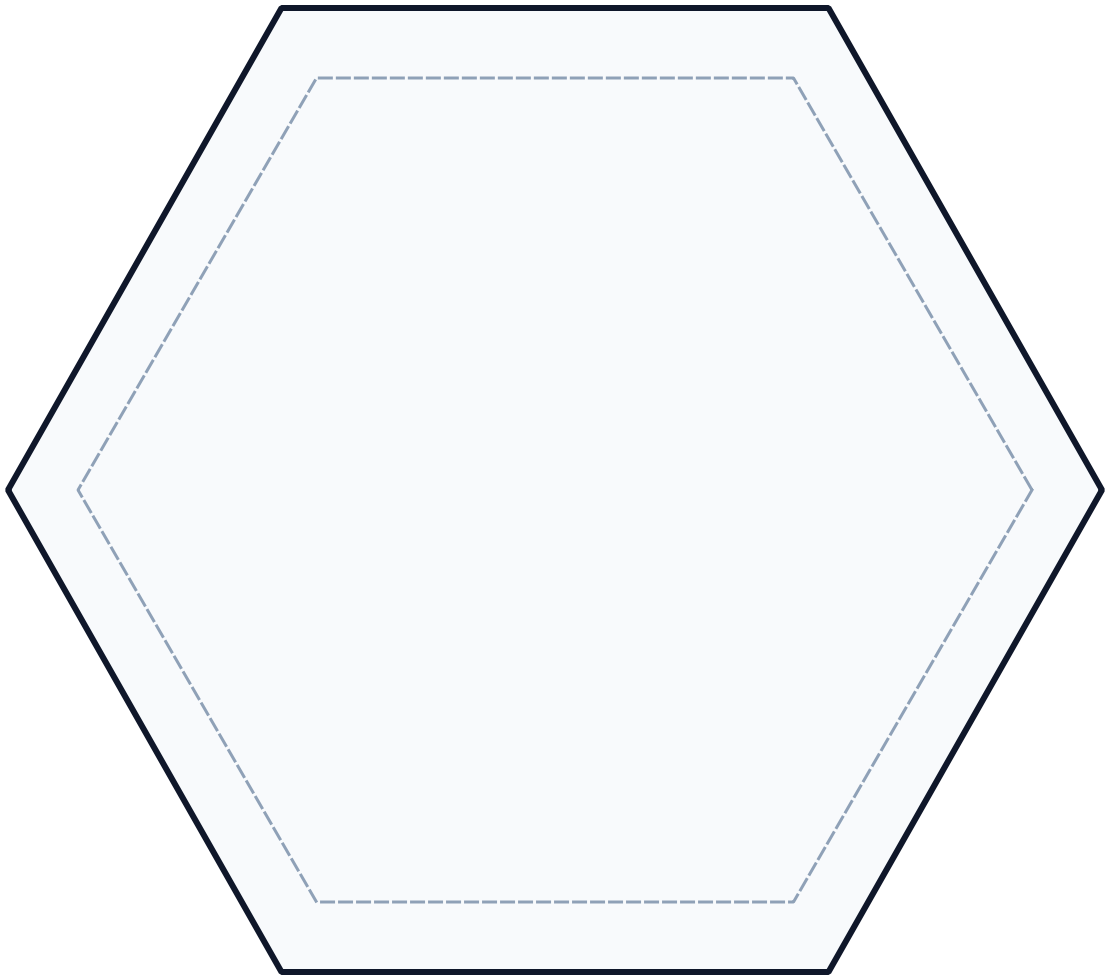
| Shape | Hexagon |
|---|---|
| Size | 111.0 x 98.0 mm |
| Printable inset | 7.0 mm |
| Amazon blank | Hexagonal Black Stone Coaster |
Use this template for hexagon coaster blanks. The inset leaves a substantial margin from the cut edge.
License Plate - 302 x 152 mm

| Shape | Rounded rectangle |
|---|---|
| Size | 302.0 x 152.0 mm |
| Corner radius | 7.0 mm |
| Slots | Four mounting slots |
| Amazon blank | Black License Plate Blank |
Use this template for standard license plate blanks with four mounting slots. Keep important artwork away from the slot areas.
Round Coaster - 4 in

| Shape | Ellipse |
|---|---|
| Size | 4.0 x 4.0 in |
| Amazon blank | Blank Round 4 in Ceramic Coaster |
Use this template for 4 inch round coaster blanks.
Square Coaster - 4 in

| Shape | Rectangle |
|---|---|
| Size | 4.0 x 4.0 in |
| Amazon blank | Blank Square 4 in Ceramic Coaster |
Use this template for 4 inch square coaster blanks.
Template JSON Reference
| Field | Purpose |
|---|---|
name | Display name in the template selector. |
width_in, height_in | Template dimensions in inches. |
width_mm, height_mm | Template dimensions in millimeters. |
shape | ellipse, hexagon, or rect. |
image | Optional PNG image or mask filename. |
corner_radius_in, corner_radius_mm | Rounded rectangle corner radius. |
printable_inset_in, printable_inset_mm | Inset from the outer template edge. |
holes | Circular cutouts or mounting holes. |
slots | Rectangular or rounded mounting slots. |
Slot by center point
{
  "x_mm": 67.0,
  "y_mm": 16.5,
  "width_mm": 30.0,
  "height_mm": 7.0
}
Slot by top-left edge offsets
{
  "left_mm": 52.0,
  "top_mm": 13.0,
  "width_mm": 30.0,
  "height_mm": 7.0
}
Troubleshooting
The image is the wrong size
Confirm the selected template matches the physical blank. Export size is based on the template dimensions and selected DPI.
The template thumbnail or mask is missing
Confirm the template JSON image field points to an existing PNG in templates/.